06 November 2011

How to install apache and php on Linux Red Hat 64 bit

In order to enable server listen web requests, we need to install apache on server
Following steps have been performed on linux red hat 64 bit operating system 
1:- First login as root on server through Putty
 
2:- Perform yum installation of apache (Yum is an automatic updater and  package installer/remover for rpm systems) 
   Type following commands
 # yum install httpd httpd-devel 
 
After installation test your installation by executing following command
 
# service httpd start
With this, your apache has been successfully started.
 
3:- Configure APACHE
 For this, we have to edit httpd.conf file located at /etc/httpd/conf/http.conf
 
Type following command
 # sudo nano httpd.conf
 
Now edit following entry
Servername IP ADDRESS:80
 
Now restart your server, type following command
 # service httpd restart
 Your apache installation is complete now
 
2:- Install PHP
 
1:- Type following command
 
# yum install php
With this your PHP have been installed on server
 
2:- Create a file named index.php where by default apache will point to
 
Type following commands
 
# cd /var/www/html
# sudo nano index.php
 
Now type following code inside it 
<?php phpinfo(); ?> 
and Save it 
 
3:- Restart apache
 
# service httpd restart
 
Final Step is to test installation of php and apache on server
 
Open web browser and type 
https://your ip address
 
It should open all the information about php extensions etc
 
Note:- 
 If after successful installation of apache,it does not listen to web request simply type following commands
 # iptables -I INPUT -p tcp --dport 80 -j ACCEPT
# /etc/init.d/iptables save 

How to create and Instance on Amazon?

Login to amazon web services, Go to http://aws.amazon.com/
Now Go to Amazon EC2 and Launch Instance


Select Instance of your choice.
(In this case, we selected below mention machine).
Red Hat Enterprise Linux 6.1 64-bit (AMI Id: ami-31d41658)
Red Hat Enterprise Linux 6.1, EBS-boot, 64-bit architecture.
Root Device Size: 6 GB

Select Instance Type

Default Options

Give name key (not necessary)
(This will be the name of your Amazon EC2 instance).


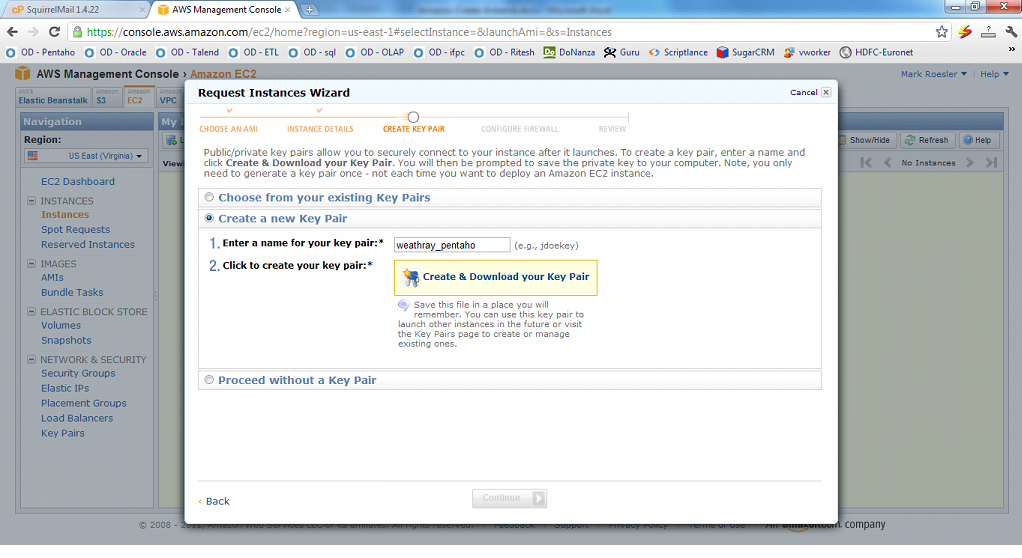
Create new key pair and download it to your local machine.

A .pem file will be downloaded to your machine. Keep it at safe place. It is the key which allow you to enter into Linux box.
Should be kept very safe.
Now create a new security group and add a new rule for SSH (port 22) connection. Adding this rule will allow you to connect to Linux instance through PuTTY or WinSCP (or any client which can establish SSH connection) from your local machine, which will establish ssh connection.


 Review and Launch Instance


Within a minute, you will be able to see that instance is running.
Important to note:-
  • If instance is not in use, stop the instance. You will not lose the data.
  • To remove the EC2 instance permanently, terminate it from “Instance Actions” menu.
  • Once you terminate the instance, it is gone forever.
  • Stopping an instance detach Elastic IP  associated with it.
  • Security key is your gate pass to enter into Linux box. Keep it very safe.
  • To enhance security, always associate a keypassphrase with PuTTY key.